
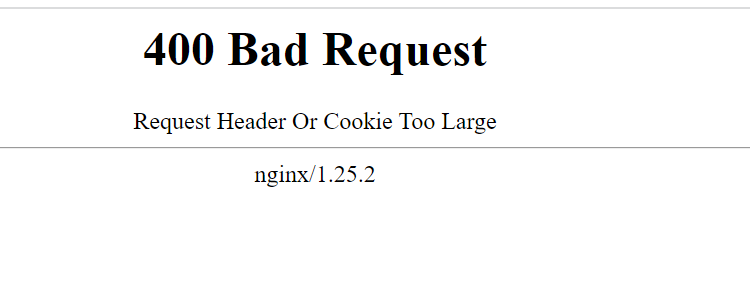
This is what the error looks like — a plain white page reading “400 Bad Request.”
The fix: clear cookies for student.bryan.edu (and the related Microsoft/Bryan sign-in domains) in your browser. The steps below take about a minute in any browser.
Fastest check: open student.bryan.edu in a private/incognito window first. If it loads fine there, the fix below will solve it permanently in your regular window too.
Google Chrome
- Click the three dots (⋮) in the top-right corner, then Settings.
- Go to Privacy and security → Clear browsing data.
- Set the time range to All time.
- Check Cookies and other site data and Cached images and files.
- Click Clear data, then reload student.bryan.edu.
Microsoft Edge
- Click the three dots (⋯) in the top-right corner, then Settings.
- Go to Privacy, search, and services → Clear browsing data → Choose what to clear.
- Set the time range to All time.
- Check Cookies and other site data and Cached images and files.
- Click Clear now, then reload student.bryan.edu.
Mozilla Firefox
- Click the menu button (☰) in the top-right corner, then Settings.
- Go to Privacy & Security and scroll to Cookies and Site Data.
- Click Clear Data…, check both boxes, and click Clear.
- Reload student.bryan.edu.
Safari (Mac)
- Open Safari → Settings (or Preferences), then the Privacy tab.
- Click Manage Website Data…
- Search for
bryan.edu, select the results, and click Remove, then Done. - Reload student.bryan.edu.
Still seeing the error?
Contact the IT Help Desk: helpdesk@bryan.edu or 423-775-7333. See also the full login walkthrough.