Admissions
Stophel 107, Box #7791

Dayton, Tennessee
Portal Update
MyBryan has moved to student.bryan.edu, a refreshed way to access your academic, financial, and student information. The first time you log in you’ll need to link your Bryan account — see the steps below. Questions? Email helpdesk@bryan.edu or call 423-775-7333.
One-time setup, the first time you log in
Enter your name. If it isn’t already filled in, enter your last name, a comma, and your preferred first name in the “Display Name” box (e.g., Smith, Joe).
Enter your Bryan email. Type your Bryan email address in the “School Email Address” box. This must be your Bryan email for your account to link correctly.
Confirm your email. Click “Send Verification Code,” then check your Bryan email at mail.bryan.edu for the code. Check your Spam folder if you don’t see it.
Confirm your legal name. Enter your legal first name (as it appears on your birth certificate or Social Security card) in “Given Name,” and your legal last name in “Surname.”
Click Continue. You’re all set — you’ll be signed in to student.bryan.edu automatically.
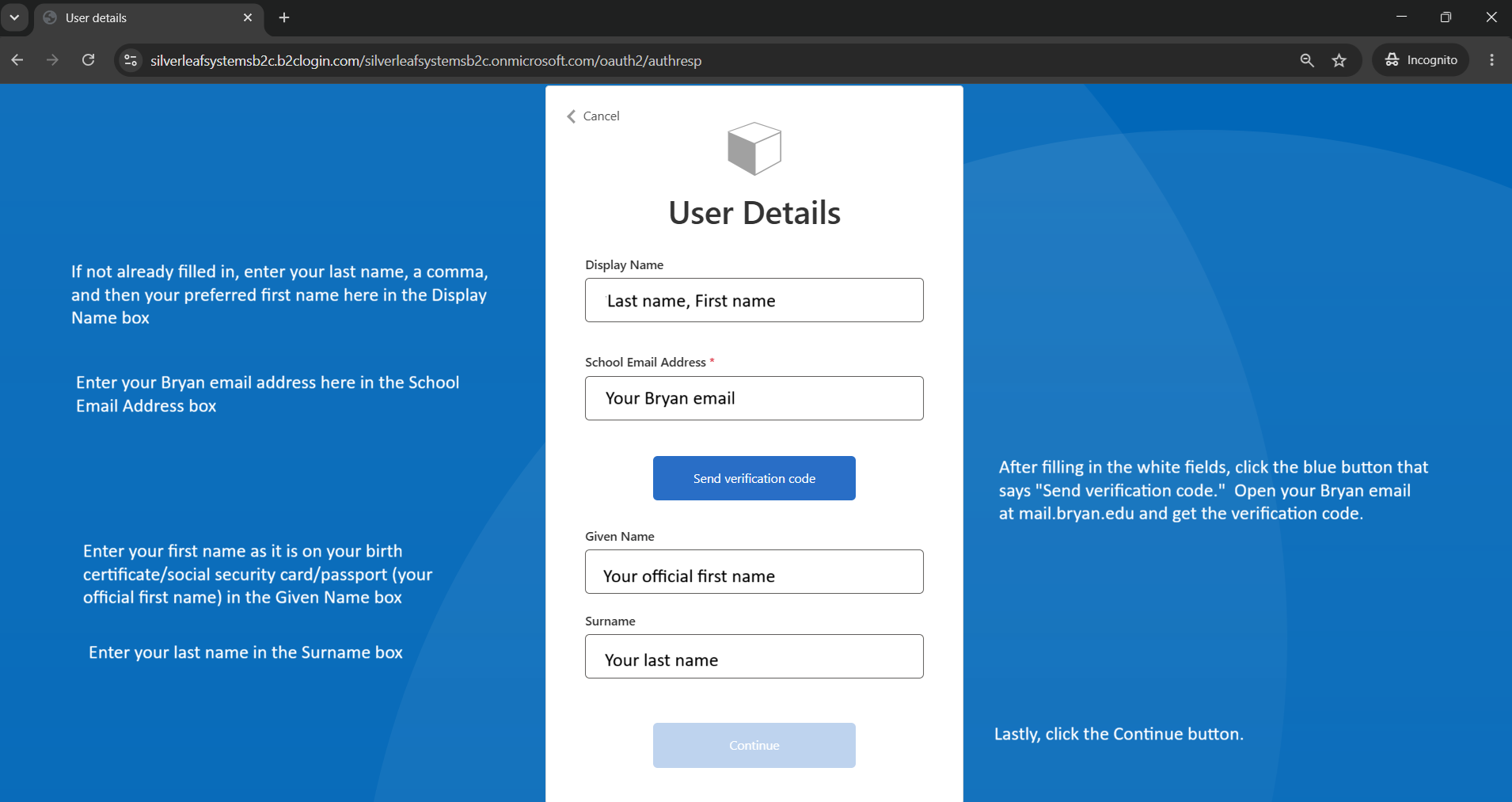
Your browser’s address bar will show a b2clogin.com address during this step — that’s expected, it’s part of Bryan’s secure sign-in process.
Check the Spam/Junk folder in your Bryan email at mail.bryan.edu.
Make sure you typed your Bryan email address exactly in the “School Email Address” box — not a personal email.
Click “Forgot my password” on the sign-in screen, or see the full login guide.
Still stuck? Contact the IT Help Desk: helpdesk@bryan.edu or 423-775-7333.
MyBryan has moved. Update saved bookmarks and links to student.bryan.edu.
Try a hard refresh (Ctrl+F5 on Windows, Cmd+Shift+R on Mac), or try a different browser or a private/incognito window.
This usually means your browser has too many stored sign-in cookies. See how to clear cookies in Chrome, Edge, Firefox, and Safari.
Tap a number to call · tap an address to email
Stophel 107, Box #7791
Mercer 202, Box #7784
Mercer 204, Box #7787
Mercer 201, Box #7782
Mercer 212B, The ARC Suite
Library 106, Box #7793
Mercer 101, Box #7788
Box #7781