
Go to student.bryan.edu
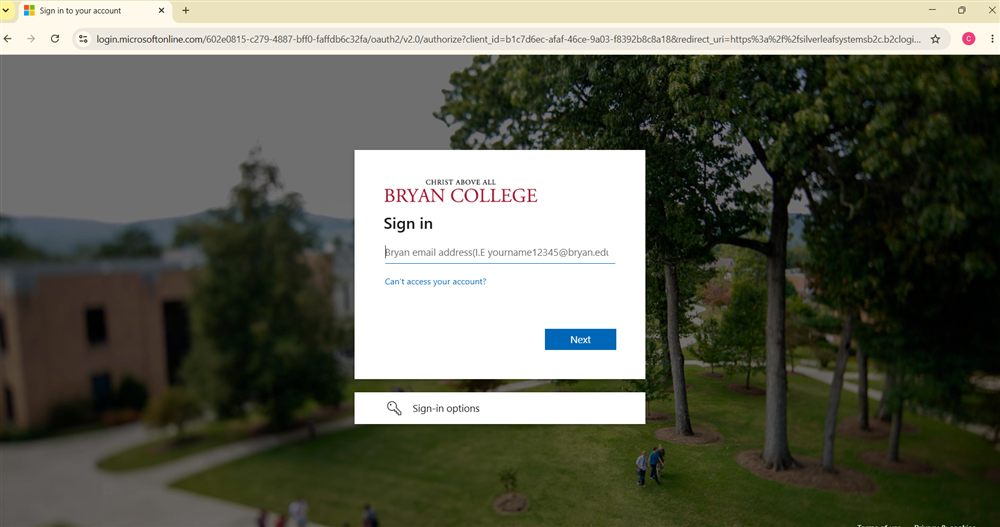
Open a new browser window and type student.bryan.edu in the address bar. On the Bryan College sign-in screen, enter your Bryan email address and click Next.
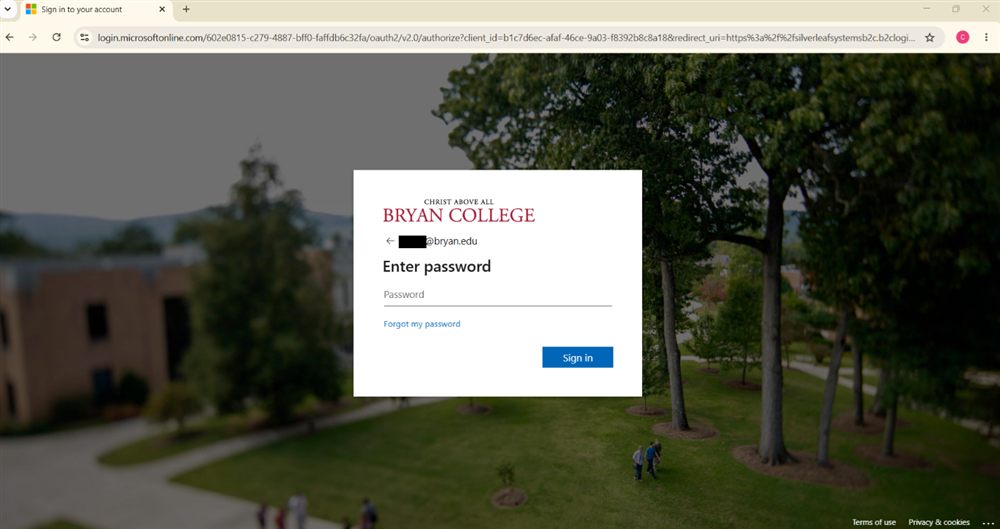
Enter your password
Enter the password you previously used for MyBryan and click Sign in.
Verify your identity
Next, you’ll authenticate using whichever method is set up on your account — the Microsoft Authenticator app, a text message, or a phone call.
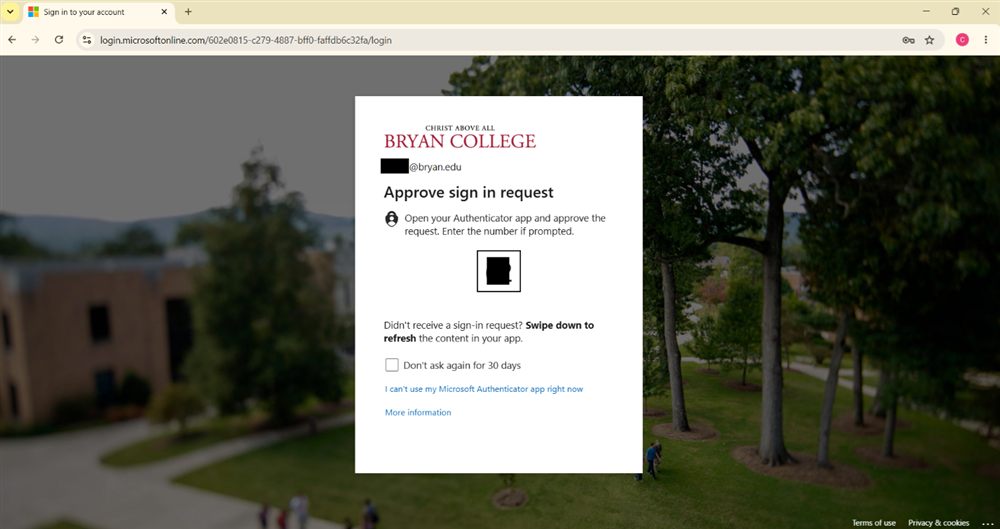
Using the app: open Authenticator and approve the request (enter the number shown if prompted).
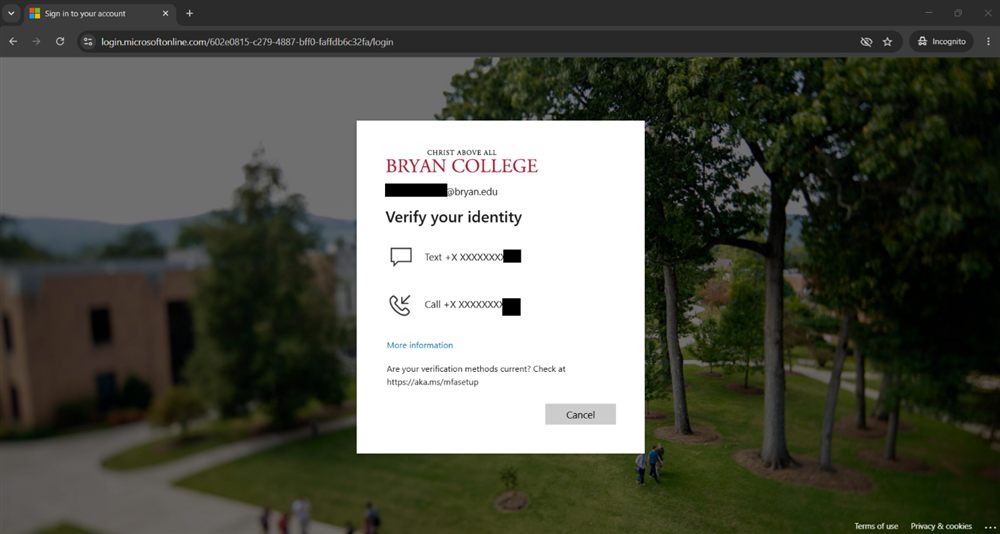
Using your phone: choose Text or Call.
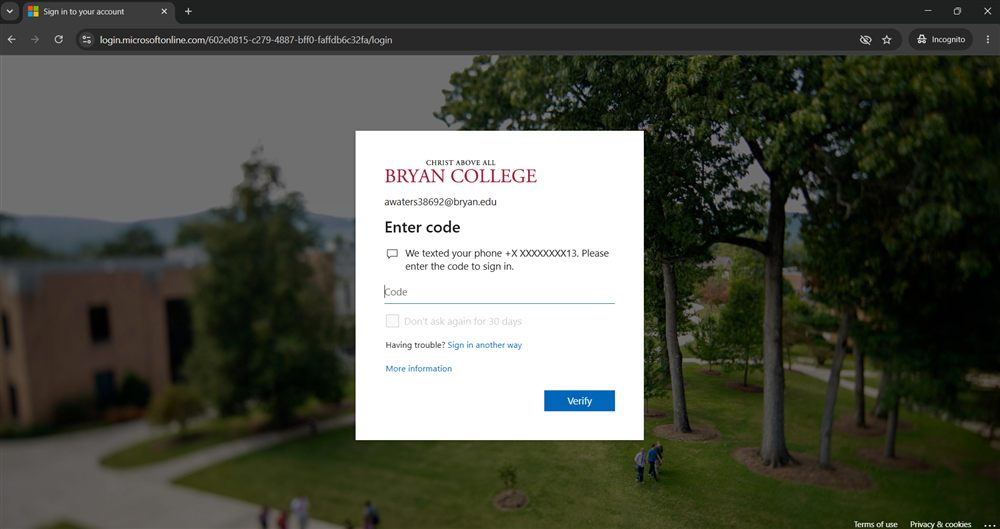
Enter the code you receive and click Verify.
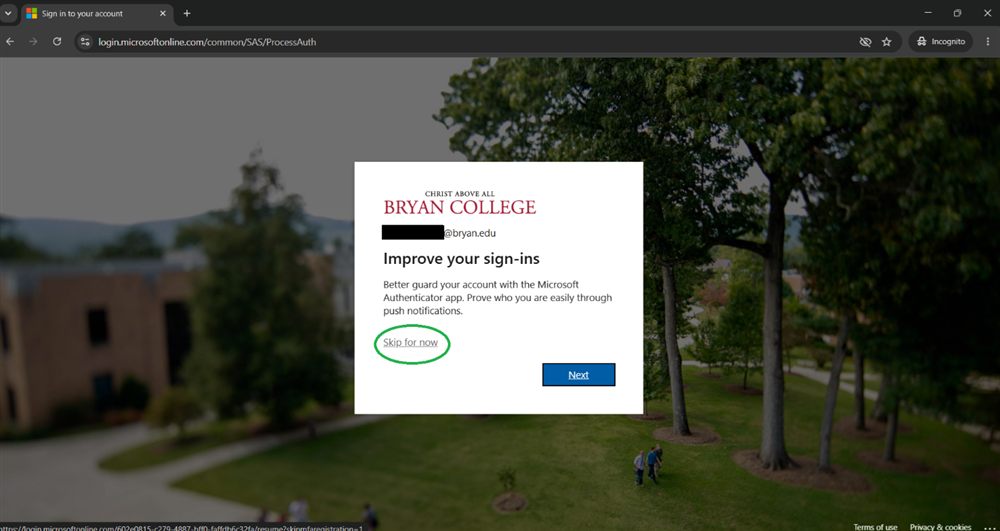
Skip the app install prompt (optional)
If you verified using text or call, you may be asked to install the Microsoft Authenticator app to “improve your sign-ins.” This is optional — click Skip for now to continue.
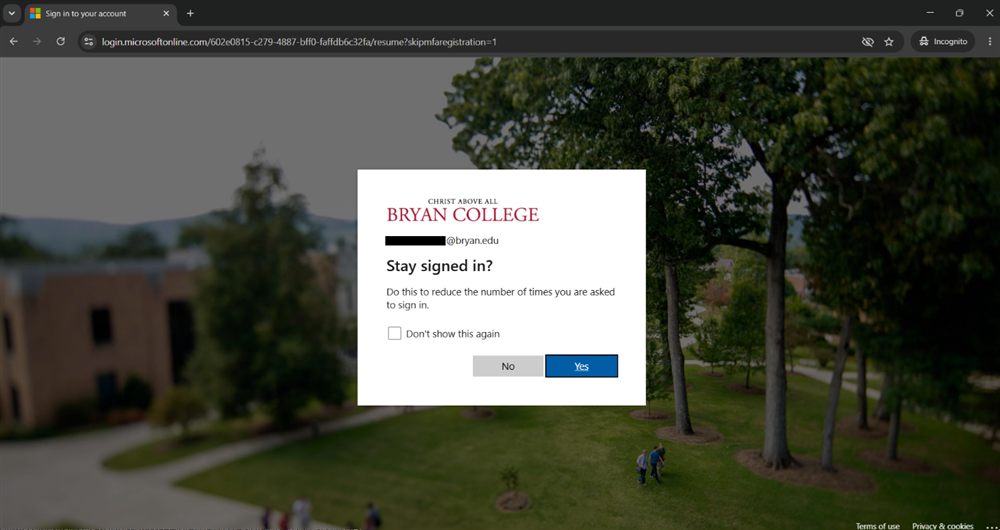
Stay signed in?
If asked whether to stay signed in, click Yes to reduce how often you’re asked to log in on that device.
Link your account (first time only)
The very first time you log in, you’ll be asked to link your Bryan account. Fill in the Display Name and School Email Address boxes with your Bryan email, then click Send verification code.
b2clogin.com address during this step — that’s expected, it’s part of Bryan’s secure sign-in process.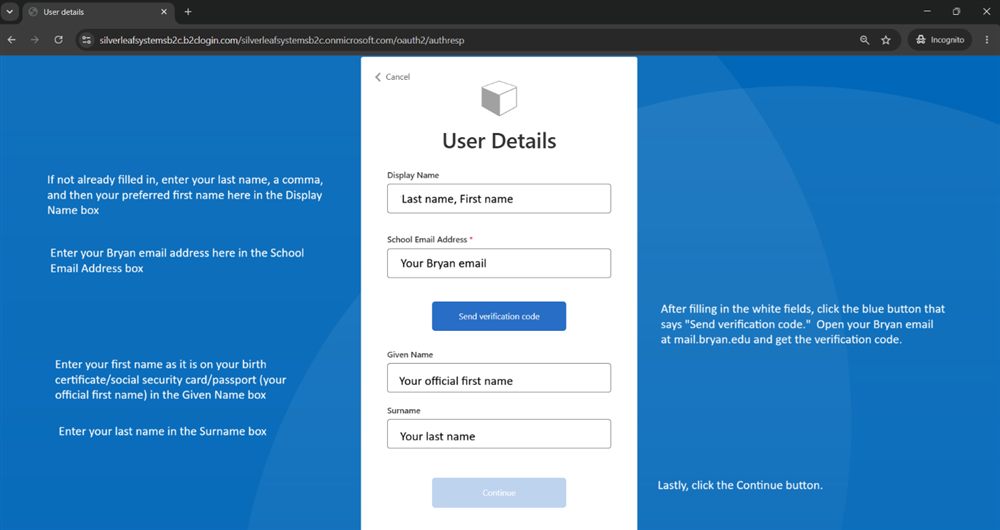
Check your email for the code
Open your Bryan email at mail.bryan.edu and look for a message from Microsoft on behalf of Silverleaf Systems B2C with the subject “Silverleaf Systems B2C account email verification code.” Check your Spam folder if you don’t see it right away.
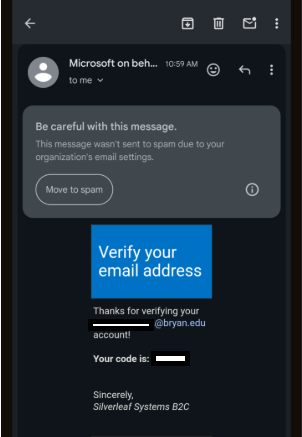
On phone
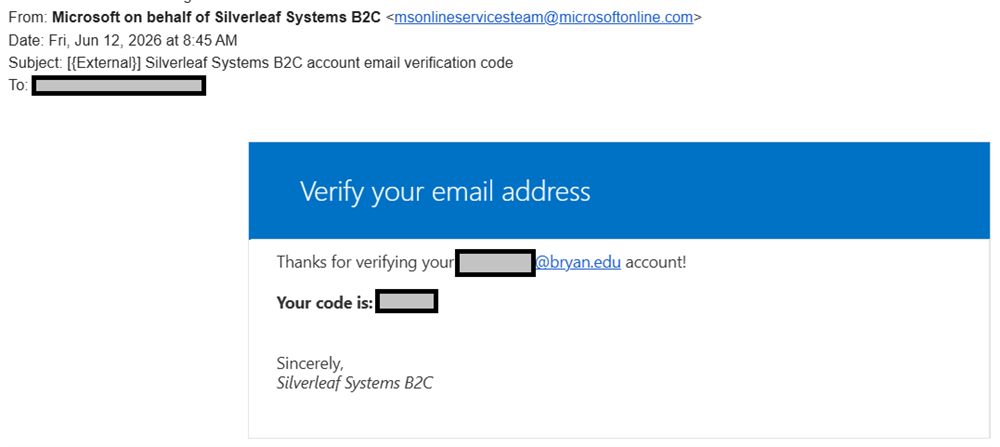
On computer
Enter the code and continue
Copy the verification code from the email, paste it in, and click Verify Code. Fill in your legal Given Name and Surname if not already filled in, then click Continue at the bottom of the screen.
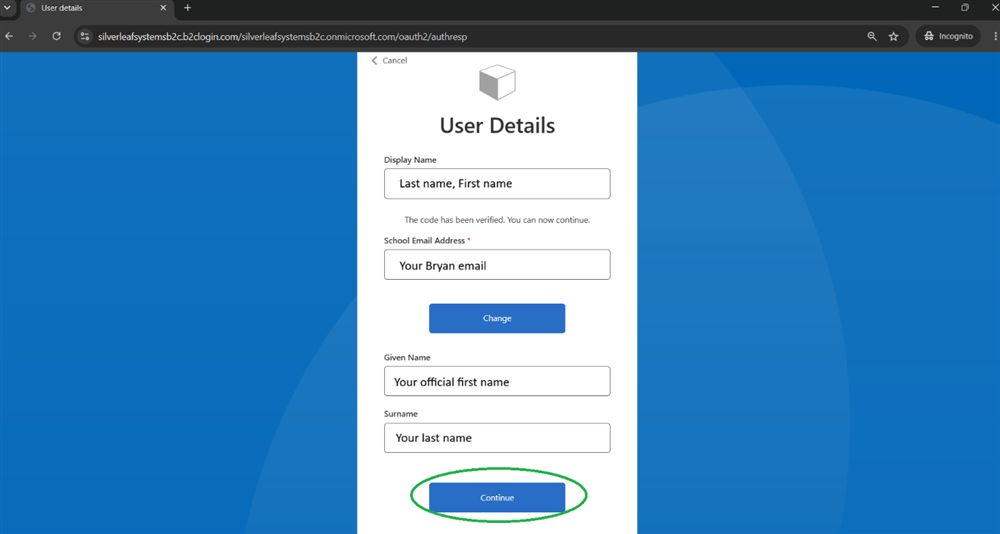
You’re in
Once signed in, you’ll land on your student.bryan.edu home page with your alerts, academics, and student links.
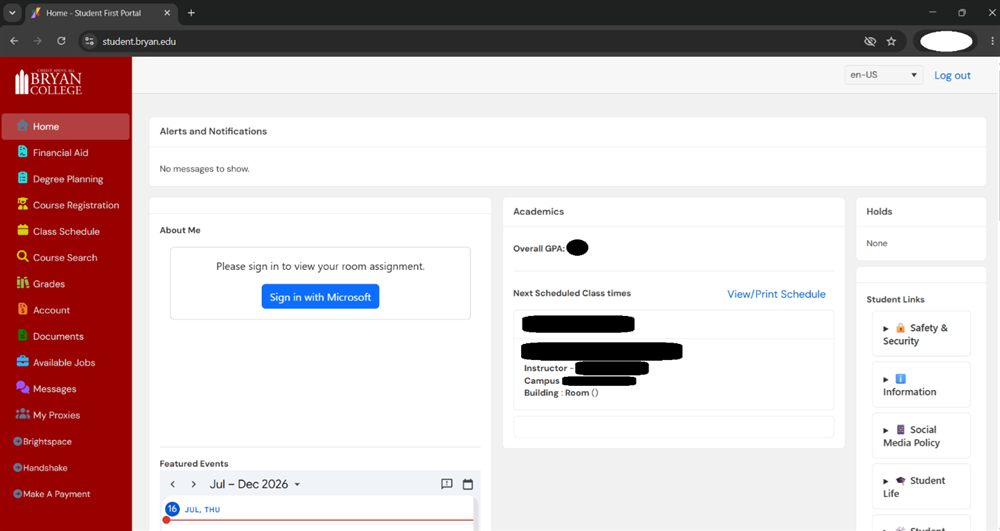
Troubleshooting
Blank screen
Make sure you’re on student.bryan.edu.
Refresh the page (Ctrl+F5 on Windows, Cmd+Shift+R on Mac), or try a different browser or a private/incognito window.
“400 Bad Request” error
This usually means your browser has too many stored sign-in cookies. See how to clear cookies in Chrome, Edge, Firefox, and Safari.
Forgot your password
Click Forgot my password on the password screen (step 2 above), or contact the Help Desk to reset access.
No verification code email
Check the Spam/Junk folder in your Bryan email for a message from Silverleaf Systems B2C.
Make sure you entered your Bryan email exactly, not a personal email.
Still stuck?
Contact the IT Help Desk: helpdesk@bryan.edu or 423-775-7333.